
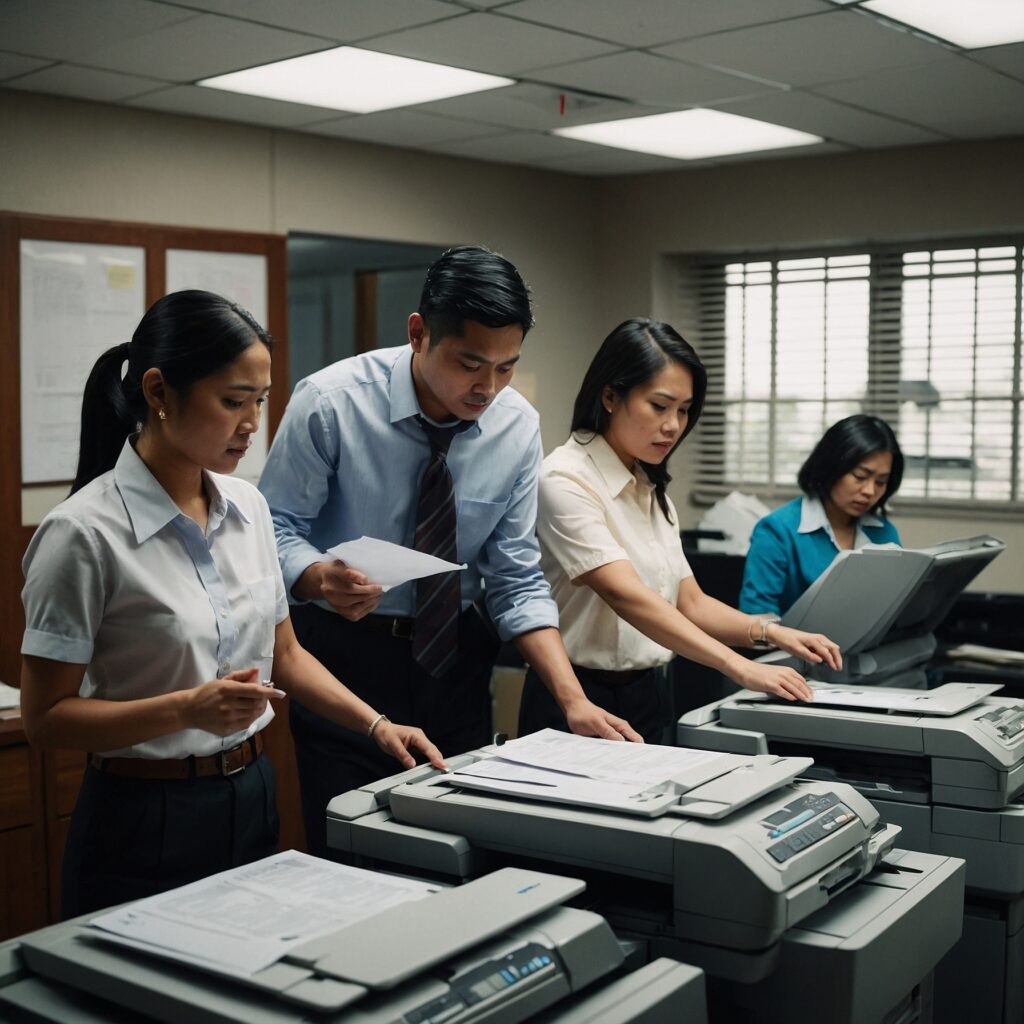
Troubleshooting Common Copier Issues: A Simple Guide for Office Efficiency
If you’ve ever dealt with a copier that refuses to cooperate just when you need it most, you’re not alone. Whether it’s a paper jam, poor print quality, or connectivity errors, copier issues can disrupt workflow and lead to wasted time. The good news? Most copier problems have quick fixes. In this guide, we’ll walk you through troubleshooting common copier issues and help you get back to business fast.
Why Copiers Malfunction (And Why It’s Normal)
Copiers are hardworking machines. They handle thousands of pages a day, juggle multiple settings, and rely on software and network configurations. Because of this complexity, occasional hiccups are expected. However, understanding how to troubleshoot these problems can save you the hassle—and even reduce the need for outside support.
If you’re currently renting a copier or considering one, it’s even more important to be familiar with potential technical issues. Learn more about copier technology and features here.
1. Paper Jams
The Problem:
Paper gets stuck inside the machine, halting printing.
Likely Causes:
Misaligned paper trays
Overloaded paper trays
Using incorrect paper sizes
Debris or torn paper remnants inside
How to Fix:
Open the indicated compartments and gently remove the jammed paper.
Make sure to pull in the direction of the paper path to avoid damaging internal parts.
Check and reload the paper tray, ensuring sheets are flat and properly aligned.
If it happens frequently, clean the rollers with a lint-free cloth.
Pro Tip: Avoid overloading the tray and always fan paper before inserting it to prevent sheets from sticking together.
2. Streaks or Lines on Printed Documents
The Problem:
Printed pages come out with horizontal or vertical lines.
Likely Causes:
Dirty scanner glass or print heads
Low toner
Damaged drum unit
How to Fix:
Open the copier and gently clean the scanner glass with a soft cloth.
Check toner levels and replace if necessary.
Inspect the drum unit for wear; if it’s damaged, it may need replacing.
If you’re using a rented copier and need help replacing components, check your agreement for included maintenance or review how to prepare for a copier rental.
3. Slow Printing or Copying
The Problem:
The copier takes unusually long to process or print documents.
Likely Causes:
High-resolution settings
Too many jobs in the queue
Network traffic
How to Fix:
Set your print mode to draft or standard resolution unless high quality is essential.
Clear the print queue by restarting the copier or removing stalled jobs.
If connected via a network, check if others are sending large print jobs that may slow down the system.
4. Error Codes or Warning Lights
The Problem:
Your copier shows confusing codes or flashing lights on the display panel.
Likely Causes:
Outdated firmware
Configuration conflicts
Hardware malfunction
How to Fix:
Refer to your copier’s manual or online resources for what each error code means.
Restart the machine to clear temporary errors.
If the error persists, you may need a technician to check the internal software or hardware.
Remember, if you’re renting, many copier rental agreements include technical support. Check your cancellation and service policies here.
5. Connectivity Problems (Wi-Fi or Network Issues)
The Problem:
Your copier won’t connect to your computer or wireless network.
Likely Causes:
IP address conflict
Network outage
Incorrect driver installation
How to Fix:
Restart the router and copier to reset the connection.
Check your copier’s network settings to ensure it’s connected to the correct Wi-Fi.
Download the latest drivers from the manufacturer’s website and reinstall.
In international offices or shared networks, it’s crucial to ensure compatibility. Explore more about international copier rentals here.
6. Toner Smudges or Blurry Prints
The Problem:
Printouts are smudged, blurry, or uneven.
Likely Causes:
Worn-out toner cartridge
Poor-quality paper
Humidity affecting paper texture
How to Fix:
Replace toner cartridges when they’re low or expired.
Use high-quality, copier-approved paper.
Store paper in a dry, cool place to avoid moisture absorption.
7. Copier Not Responding at All
The Problem:
The copier doesn’t turn on or freezes during use.
Likely Causes:
Power issues
Overheating
Internal software error
How to Fix:
Check the power source and plug it directly into a wall socket (not a power strip).
Allow the copier to cool down, then reboot it.
Contact support if it still doesn’t respond—it may need professional repair.
How to Avoid Future Copier Issues
While troubleshooting common copier issues is helpful, prevention is even better. Here are simple tips to maintain your copier in top shape:
Perform regular maintenance (cleaning, replacing filters, etc.)
Schedule professional servicing every few months
Use high-quality supplies (paper, toner)
Educate your team on proper use and loading techniques
Need more maintenance answers? Visit our full Troubleshooting Common Copier Issues FAQ for more solutions.
When to Call a Technician
If you’ve tried basic troubleshooting and the issue persists, it may be time to bring in an expert. Don’t risk voiding your copier warranty or rental agreement by attempting complex fixes yourself. Always check your service coverage before hiring third-party help.
For renters, maintenance and repairs may be covered under your plan. Not sure what’s included? Review your copier rental service details here.
Final Thoughts
Copiers may be complex machines, but many issues are easily fixable once you know what to look for. From paper jams to print quality concerns, these troubleshooting steps can help restore your workflow with minimal downtime.
Stay proactive, educate your staff, and don’t hesitate to reach out to your copier provider for help. For a deeper dive into rental preparation, maintenance plans, and copier upgrades, browse our helpful resources at Marga.biz.