
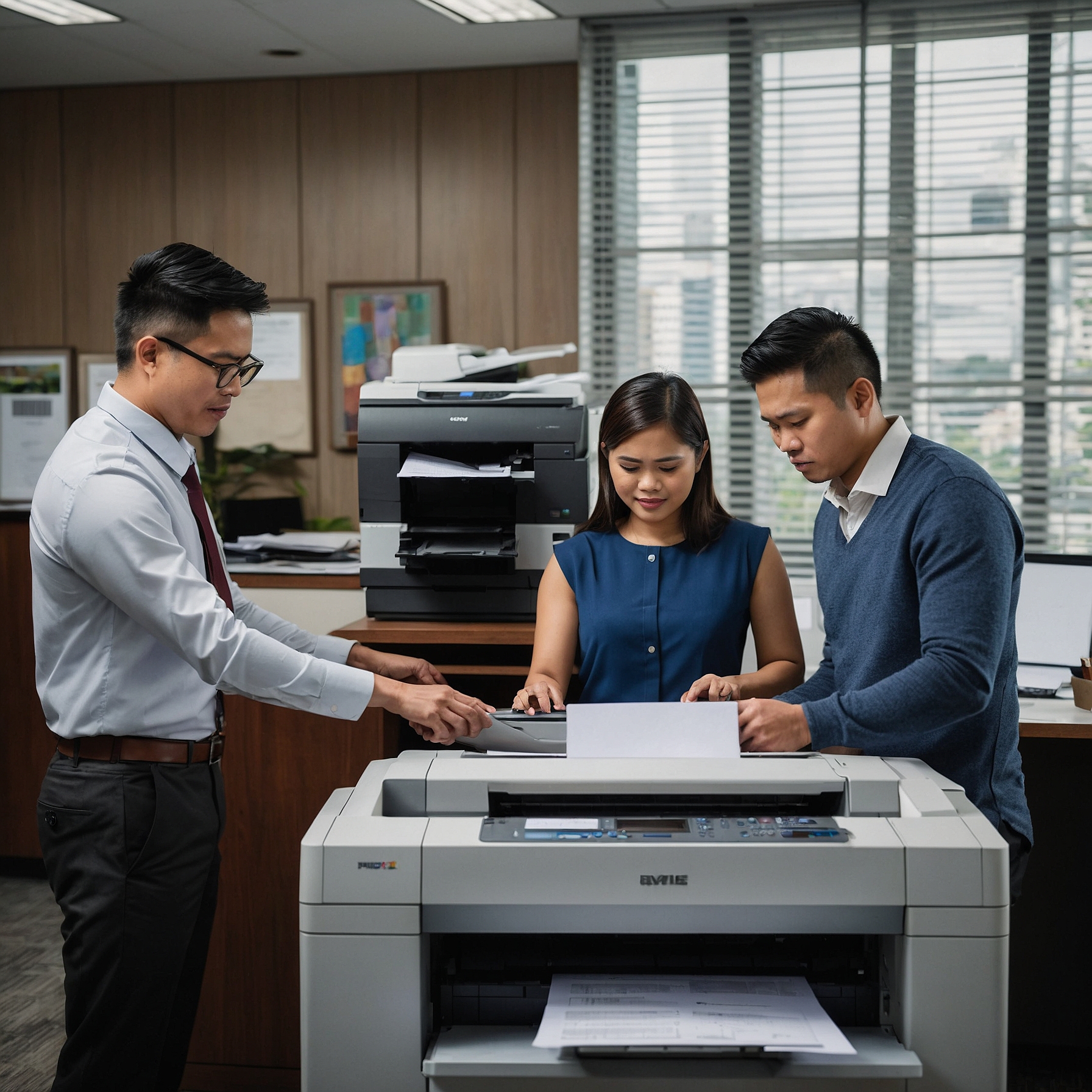
Copiers are essential tools in any office, handling everything from simple document duplication to complex printing jobs. However, even the most reliable machines can sometimes experience issues that interrupt workflow. In this guide, we will focus on troubleshooting common copier issues and provide actionable solutions to help you resolve them efficiently. Whether you're using a leased machine or one you've purchased, understanding how to handle these issues can save time, money, and frustration.
1. Paper Jams
One of the most frequent copier problems is a paper jam. While it may seem like a small issue, a jam can bring your workflow to a halt. It’s usually caused by paper misfeeds, dirt on rollers, or incorrect paper size.
How to Fix It:
Turn off the copier to prevent further damage.
Open the paper tray and carefully remove any jammed paper. If the paper is stuck inside, locate the jam release lever (most machines have this feature) and gently pull the paper out.
Check the rollers for any dirt or debris that could cause future jams. Clean them with a lint-free cloth.
Ensure the paper is properly loaded into the tray and that the paper size matches the settings on your copier.
For more insights on maintaining your copier, check out our guide on copier rental cost analysis.
2. Poor Print Quality
Another common issue is poor print quality, including blurry images, faded text, or streaks on the page. This can happen for several reasons, such as low toner levels, dirty components, or incorrect settings.
How to Fix It:
Check the toner levels and replace the toner if necessary. A low toner cartridge can cause faded or inconsistent printing.
Clean the drum: The drum inside the copier can accumulate dust, toner, and other debris, which can affect print quality. Gently wipe the drum with a microfiber cloth.
Adjust the print settings: Ensure the print quality settings on the copier are correctly configured for the task at hand. If you're printing photos, set the copier to a high-quality mode.
If you want to explore more about optimizing your copier's cost and functionality, visit our page on factors affecting copier rental prices.
3. Copier Not Turning On
If your copier isn't turning on, it can be frustrating. This could be due to electrical issues, a blown fuse, or a malfunctioning power supply.
How to Fix It:
Check the power cord and plug to ensure they’re properly connected.
Test the outlet: Plug in another device to check if the power supply is working.
Inspect the fuse: Some copiers have a fuse that can blow if there is a power surge. If you're comfortable, check the user manual for instructions on how to replace the fuse.
4. Error Messages
Copiers often display error messages that can be difficult to decipher. These messages are designed to inform you of a specific issue, such as a malfunctioning part or an issue with the settings.
How to Fix It:
Read the error message carefully: Many copiers include a code that you can look up in the manual to identify the problem.
Reset the copier: Sometimes, turning the copier off and on again can reset the internal system and clear minor errors.
Consult the manual: If the issue persists, consult the user manual or contact technical support for further assistance.
5. Slow Copying or Printing
If your copier is operating slowly, it can cause delays and reduce overall productivity in your office.
How to Fix It:
Check for excessive jobs in the print queue: Sometimes, queued jobs can cause delays. Cancel any unnecessary print jobs to free up space.
Restart the copier: This can help resolve minor glitches and speed up performance.
Check the network: If your copier is networked, a slow internet connection can cause delays. Ensure the copier is properly connected to the network with a strong signal.
For more on how to optimize your copier rental, check out how to budget for copier rentals.
6. Scanning Issues
Scanning problems are common, especially if your copier has both scanning and printing capabilities. You might experience issues such as scanning failures, poor resolution, or incorrect formats.
How to Fix It:
Check the connection: Make sure the copier is connected to your computer or network correctly.
Ensure correct settings: Verify that the settings on the copier are configured for the correct file format and resolution.
Update drivers: Outdated drivers can cause scanning problems. Ensure the scanner driver is up-to-date.
Conclusion
Troubleshooting common copier issues doesn't have to be a complicated task. By following these simple steps, you can resolve many common problems yourself, saving time and money on repairs. For those experiencing ongoing issues, consider working with a reliable service provider for regular maintenance.
Remember, if you’re looking to optimize your copier rental experience, be sure to explore our resources on saving money on copier rentals and more!
For helpful tips, follow us on Facebook and YouTube. For more on copier rental options and services, visit our home page.