
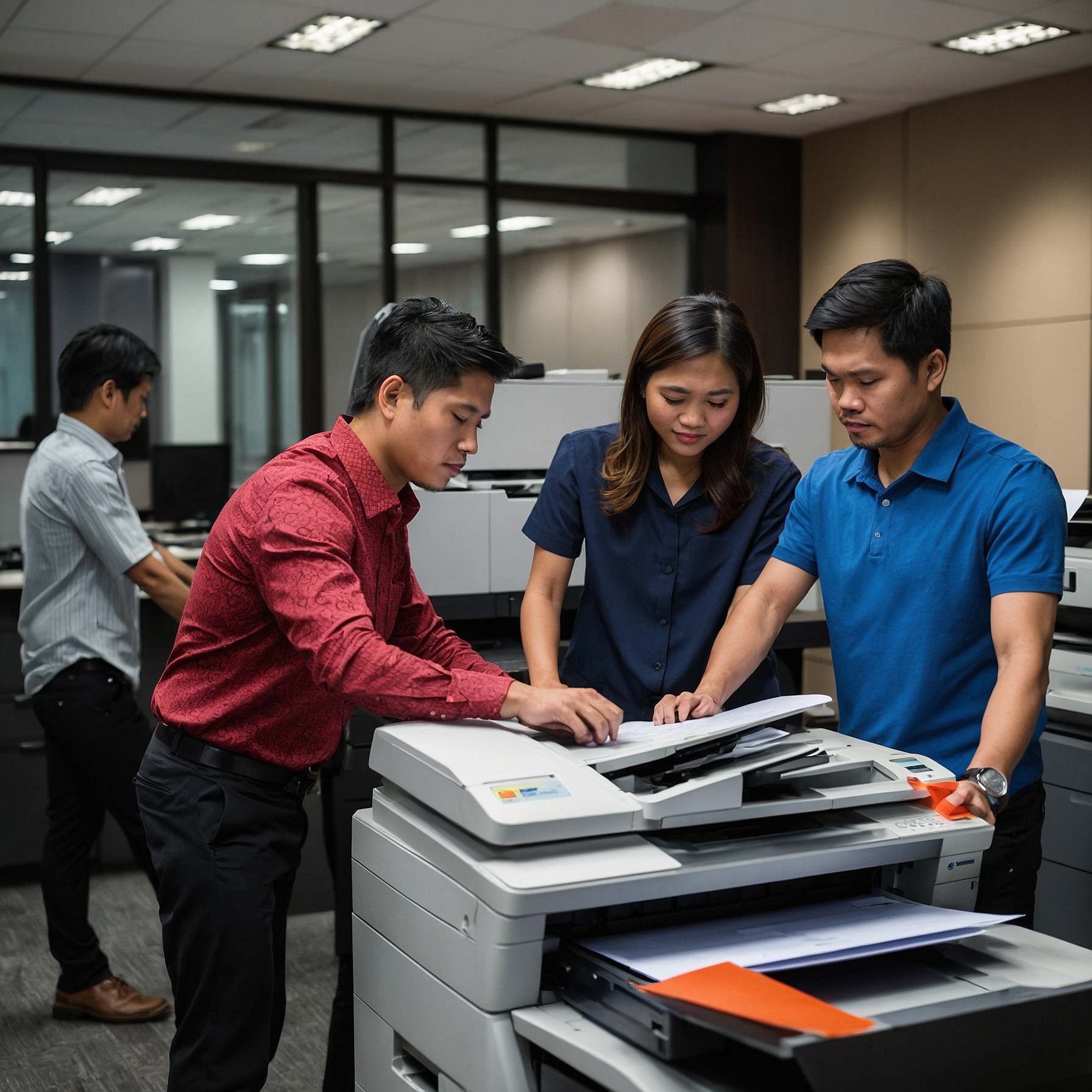
Fixing Remote Printer Problems: A Simple Guide for Smooth Printing at Home or Work
Working from home or managing a remote team has plenty of perks—but when your printer suddenly stops working, productivity takes a hit. Remote printer problems are frustrating, but most of them are fixable without calling IT support or rushing to buy a new machine.
In this guide, we’ll walk you through common remote printer issues, how to fix them, and how to keep your equipment running efficiently. Plus, we’ll show how to make smarter choices by using eco-friendly printer rental options to stay productive and sustainable.
Why Fixing Remote Printer Problems Matters
Remote printing is essential for freelancers, hybrid workers, and small businesses. Whether you’re printing contracts, schoolwork, or business reports, downtime means delays. The good news? Most printer issues—like connectivity errors, driver glitches, or low-quality prints—can be resolved with a few troubleshooting steps.
Let’s break down the most common problems and how to fix them.
1. Common Remote Printer Problems and Quick Fixes
A. Printer Is Not Detected by the Computer
This is a classic issue. You send a document to print, but nothing happens.
Fix:
Check the Wi-Fi connection on both the computer and printer.
Restart the printer, router, and computer.
Reinstall or update the printer driver from the manufacturer’s website.
If you're using a shared printer via remote desktop or a print server, ensure that the printer is shared correctly and permissions are enabled.
B. Printer Is Offline
Sometimes, the printer shows as “offline” even when it’s powered on.
Fix:
Open the Control Panel > Devices and Printers.
Right-click the printer and select “Use Printer Online”.
Disable “Pause Printing” or “Use Printer Offline” if checked.
For remote setups, make sure VPN or remote network access isn't blocking the connection.
C. Poor Print Quality (Faded, Streaks, or Smudges)
This could be due to low toner, clogged nozzles, or using non-recommended paper.
Fix:
Run a cleaning cycle using the printer software.
Check the ink or toner levels.
Replace the cartridge or toner if it’s low.
Use the recommended paper type for your printer.
Consider switching to eco-friendly ink and toner options (see here) to reduce environmental impact while maintaining quality.
D. Paper Jams
Paper jams are common, especially with older or improperly loaded machines.
Fix:
Open all access panels and carefully remove any jammed paper.
Make sure paper is loaded evenly and correctly.
Avoid using wrinkled or incompatible paper sizes.
Regular maintenance prevents paper jams and extends printer life.
2. Remote Printing Over Cloud Services
With cloud-based printing services like Google Cloud Print (deprecated) or manufacturer-specific services (e.g., HP ePrint, Epson Connect), you can send print jobs over the internet.
If cloud printing fails:
Ensure your printer is registered and connected to the cloud account.
Check email print permissions if you're using a print-to-email feature.
Test printing from a different device or network to rule out device-specific issues.
Tip: Use cloud-compatible printers with energy-efficient features (learn more here) for lower operational costs and environmental benefits.
3. Keeping Your Printer Secure
Remote printers can be vulnerable to cyber threats, especially when connected to home networks.
Best practices:
Change default passwords for printer admin settings.
Keep firmware and software up to date.
Use a VPN when accessing printers via remote desktops.
Limit access through router firewall settings or printer IP filters.
Security protects your data—and your peace of mind.
4. Sustainable Solutions: Eco-Friendly Remote Printing
While fixing technical issues is key, choosing sustainable printing solutions helps reduce long-term waste and costs. Whether you own or rent a printer, it pays to be eco-conscious.
Here’s how to combine efficiency and responsibility:
A. Rent Eco-Friendly Printers
Instead of buying, renting printers can save money and provide access to the latest eco-friendly models with automatic duplex printing, low-energy modes, and smart power settings.
Check out this guide on cost-effective eco-friendly printer rentals to explore options.
B. Choose Certified Green Devices
Look for certifications like ENERGY STAR, Blue Angel, or EPEAT.
See the full list of recognized eco-certifications for printers here.
C. Use Sustainable Materials
Modern printer manufacturers use recyclable or biodegradable parts. Make sure your rental provider supports sustainable materials (explore more).
D. Join Recycling Programs
Many rental companies offer toner and cartridge recycling programs. Participating in these helps reduce landfill waste. Learn about printer recycling programs here.
5. When to Call for Support
Sometimes, remote fixes aren’t enough. If the issue persists after troubleshooting:
Contact your printer rental support or manufacturer.
Report recurring hardware errors.
Schedule preventive maintenance checks if you’re using a leased printer.
Remember, a long-term partnership with reliable rental providers ensures quick support, equipment upgrades, and smoother remote printing experiences.
6. Future-Proofing Your Remote Printing Setup
Technology is always evolving. Remote printing setups must adapt to hybrid work, digital transformation, and sustainability trends.
Here’s how you can stay ahead:
Invest in or rent smart printers that support mobile, cloud, and Wi-Fi Direct printing.
Stay updated with the future trends in eco-friendly printer rentals.
Partner with vendors that prioritize corporate responsibility and customer service.
Final Thoughts
Fixing remote printer problems doesn't have to be stressful. With the right troubleshooting approach, a bit of patience, and access to professional support when needed, you can keep your printing tasks on track.
And by choosing eco-friendly printer rental solutions, you also contribute to a more sustainable future—at home or in the office.
Make printing smarter, cleaner, and hassle-free.
Recommended Reads:
Let us know in the comments: What’s the most frustrating printer issue you’ve encountered—and how did you fix it?