
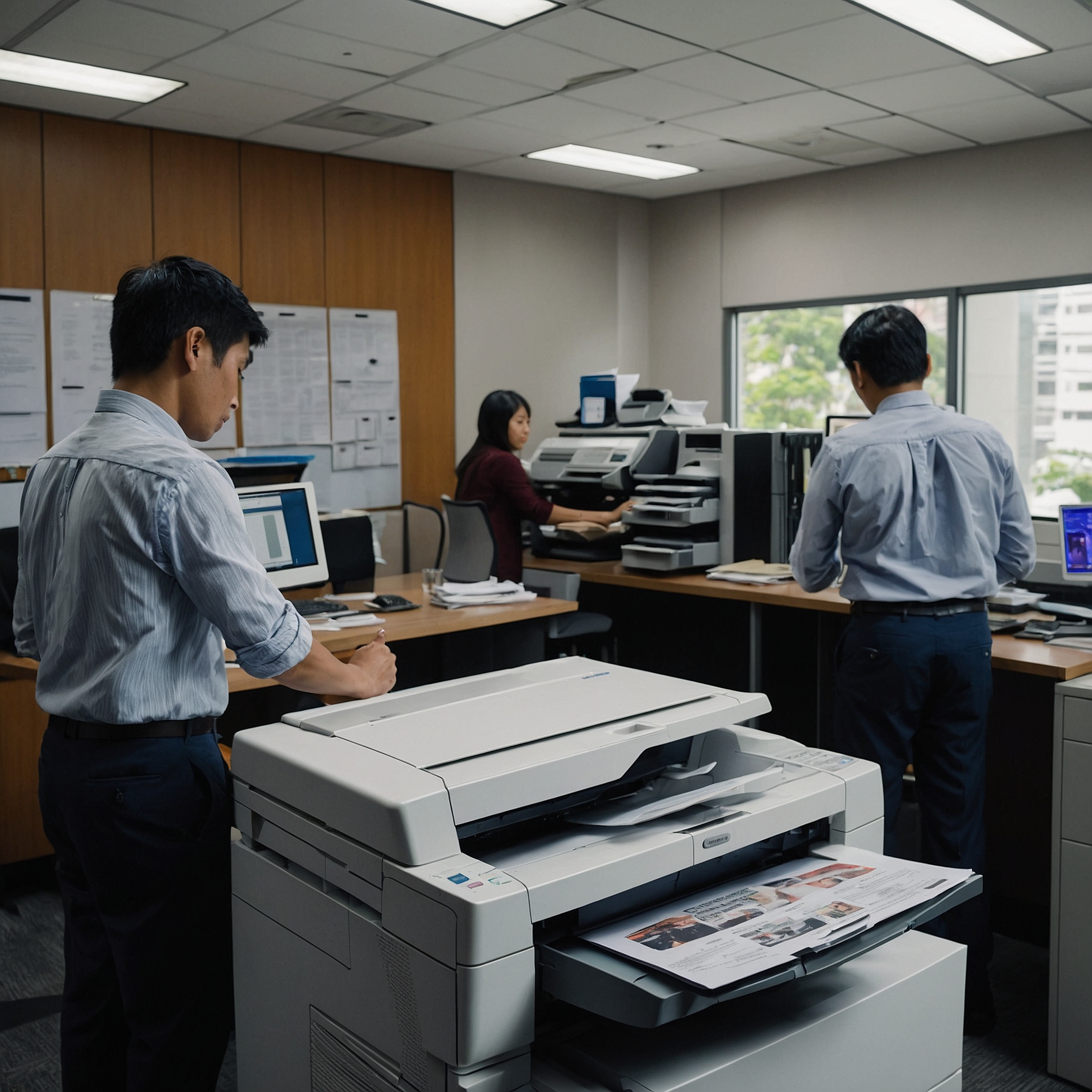
Printers are essential tools for homes and businesses alike. But like any machine, they require regular care to perform at their best. The good news? You don’t need to be a technician to take care of your printer. With a few simple habits and some basic know-how, you can extend the life of your machine and avoid costly repairs.
In this post, we’ll share practical and easy-to-follow DIY printer maintenance tips to help you prevent issues and keep your device in top condition. Whether you use an inkjet, laser, or all-in-one printer, these steps will make a big difference.
Why Printer Maintenance Matters
Before we jump into the tips, let’s talk about why printer maintenance is important. Over time, dust, dried ink, and worn parts can slow down or damage your printer. Regular upkeep helps:
Prevent paper jams and printing errors
Maintain print quality
Prolong your printer’s lifespan
Save money on repairs and replacements
👉 Learn more: Importance of Printer Maintenance
Tip #1: Keep Your Printer Clean
Dust and debris can build up inside and outside your printer, leading to clogs and mechanical issues.
How to clean it:
Exterior: Wipe the outer surface with a soft, lint-free cloth. Avoid using harsh cleaners.
Interior: Open the printer and gently clean with a dry brush or compressed air. Be careful not to touch any sensitive components.
Paper Tray: Remove dust or paper particles to avoid feeding issues.
Clean your printer at least once a month, or more often in dusty environments.
Tip #2: Use Quality Paper and Ink
Low-quality paper and refilled or generic cartridges may save money upfront, but they often cause jams and reduce print quality.
Best practices:
Use paper recommended by your printer manufacturer.
Store paper in a dry, cool place to avoid moisture-related issues.
Invest in branded or compatible high-quality ink and toner.
This small upgrade can prevent many common printer problems.
Tip #3: Print Regularly
Letting your printer sit idle for long periods can cause ink cartridges to dry out or clog.
What you can do:
Print a test page or small document every week.
Set reminders if you don’t print often.
Consistent usage helps keep ink flowing and prevents dry heads, especially in inkjet printers.
Tip #4: Update Your Printer Drivers and Firmware
Just like your computer or phone, your printer may need software updates to fix bugs or improve performance.
Steps:
Visit your printer manufacturer’s website.
Download the latest drivers and firmware for your model.
Follow the update instructions carefully.
An updated system helps your printer stay compatible with newer devices and reduces errors.
Tip #5: Check and Align Printheads
If your prints are streaky or misaligned, your printheads might need cleaning or alignment.
What to do:
Use the printer’s built-in maintenance menu to run a nozzle check, printhead cleaning, or alignment tool.
Avoid manually touching the printhead unless you’re experienced.
This process improves clarity and color accuracy in your prints.
Tip #6: Avoid Overworking Your Printer
Every printer has a maximum monthly duty cycle. Exceeding this limit can cause overheating or wear down internal parts faster.
How to manage:
Know your printer’s monthly capacity (check the manual or specs).
For heavy printing needs, rotate between multiple printers.
Consider upgrading to a high-volume model if needed.
👉 Consider this: Types of Printer Maintenance Services
Tip #7: Prevent Paper Jams with Proper Loading
One of the most common printer issues—paper jams—can be prevented with good paper handling habits.
Do this:
Always fan the paper before loading.
Don’t overfill the tray.
Adjust paper guides snugly against the paper stack.
Remove any old or damaged sheets.
And never pull a jammed page forcefully—always follow your printer’s jam-clearing instructions.
Tip #8: Turn Off When Not in Use
Leaving your printer on 24/7 wears out the internal components and may waste energy.
Ideal routine:
Turn off the printer when not in use for long periods.
Use the auto-off or sleep mode if your printer supports it.
This helps conserve energy and prolongs the life of internal fans and rollers.
Tip #9: Store in a Dust-Free and Stable Environment
Printers are sensitive to heat, humidity, and dust. Proper storage can prevent many issues.
Recommendations:
Keep the printer in a cool, dry area.
Avoid placing it near windows, vents, or kitchens.
Cover it when not in use for extra protection.
Tip #10: Sign Up for a Maintenance Plan (Even DIYers Need Help)
While these DIY printer maintenance tips go a long way, having professional support ensures your printer stays in peak condition long-term.
Some rental companies and service providers offer maintenance plans that include:
Regular checkups
Deep cleaning
Parts replacement
Emergency repairs
👉 Explore your options: Printer Maintenance Plans
Bonus Tip: Track Usage and Errors
Most modern printers allow you to view usage reports or error logs. Use this data to:
Monitor print volume
Spot patterns in issues
Schedule timely cleanings or maintenance
Being proactive helps you fix problems before they grow bigger.
When to Call a Professional
Even the best DIYer knows when to call in backup. Contact a technician if you notice:
Persistent error codes
Leaking ink or toner
Hardware malfunctions (like rollers not feeding paper)
Recurring print quality issues that don’t resolve with basic cleaning
A timely professional check-up can save your printer from serious damage.
Final Thoughts
Maintaining your printer doesn’t have to be difficult or expensive. With these DIY printer maintenance tips, you can keep your printer running smoothly, save money, and avoid frustrating downtimes.
Whether you're managing a home printer or a small office machine, a little effort goes a long way. And if you need extra support, consider signing up for a maintenance plan or contacting your rental provider for guidance.
Looking for professional maintenance solutions?
Visit Marga.biz to explore our full maintenance service offerings and keep your printer in excellent shape.